Google My Business Guide :
Managing & Optimizing Your GMB Profile
Helpful tips to start managing your Google My Business profile.
Your Google My Business profile is critical to getting discovered in search results
and being selected by potential customers.
In this guide, we’ll outline how you can create
and optimize a Google My Business profile that attracts attention and gets results.

Part 1:
Getting started with Google My Business
- What is Google My Business?
- Google My Business and SEO
- How to claim your Google My Business profile
- How to create your Google My Business profile
- Google My Business for multi-location businesses
Part 2:
Optimizing your Google My Business profile
- Google My Business description
- Google My Business categories
- Google My Business Q & A
Part 3
GMB Profile Management
- GMB insights
- GMB photo guidelines
- GMB video guidelines
- Tracking traffic on Google My Business
- Google My Business posts
Part 4
GMB Profile Management
- The importance of GMB reviews
- How to generate leads through Google My Business
- Creating a GMB short name & URL
- The Google My Business app
Part 5
Google My Business - Miscellaneous
- Google My Business Q&A
- Suspension of Google My Business profile
- Removing your GMB listing
- Google My Business alternatives
Part 1: Getting started with Google My Business
If you are new to Google My Business, we've provided you with information to help get you started creating your own GMB profile.
What is Google My Business?
Google My Business (GMB) is a service provided by Google that allows you to manage how your business appears on Google maps and in Google search results. Your GMB profile includes information such as business name, address, phone number, also known as "NAP". It also contains a short description, hours of operation, map, photos, Q&As, and customer reviews. It makes it easier for people searching for your services to see what your business is about and how to get in touch.
Google My Business is FREE
Google My Business is 100% free. There is absolutely no charge to include your business in their listings.
Google My Business vs. Google+
There is some confusion between Google+ and GMB.
Google+
Google+ used to be Google’s social media network that launched in 2012. Google+ had personal and business profiles. However, the platform was not very popular and shut down in 2019.
Google My Business:
On the other hand, Google My Business is extremely popular. It controls how your business appears in Google Maps results. GMB profiles are not related in any way whatsoever to the Google+.
Google My Business SEO Benefits
Google My Business helps prospects to see information they need to learn about your company. But that's not all. Google My Business also helps your business rank higher in search results.
Google My Business helps with Google’s algorithm including information about your business services offered. That means higher search rankings.
According to Moz (A highly respected autority on SEO), Google My Business is the #1 factor determining a business's local search ranking. That means it will be more difficult to rank well without an optimized Google My Business profile.
In spite of the benefits that Google My Business offers, there are still many businesses that don't take advantages of Google's GMB service.
Roughly 44% of businesses have claimed their Google My Business profile. If you are one of those businesses, you are making it more difficult for customers searching for your services to find you. If that's the case, we will be happy to help you.

How to Claim your Google My Business Profile
If your business is doesn't have a GMB profile, or you simply have to claim it, lets discuss how you can do both.
How to claim an existing Google My Business profile:
Step 1:
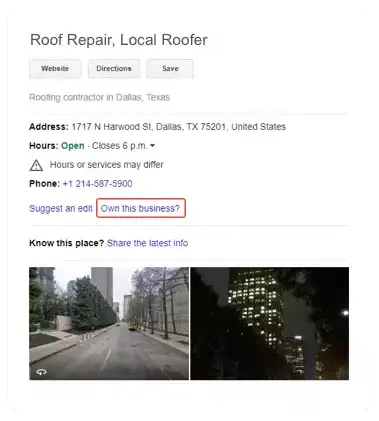
You can claim it by first locating your business on Google Maps. Typing in your business’s name and the city you’re located. This is usually sufficient.
Step 2:
Click where it says "Own this business?"
Step 3:
If the listing has already been claimed by someone else, you’ll see this screen. Maybe someone else in your company has already claimed it earlier. You have the option to either request access from the owner, or if you don’t know who the owner is, to appeal to Google.

Step 4:
If the listing has not been claimed, you’ll see the screen below. Click the button that says "Manage Now".

Step 5:
After claiming your profile, Google will send you a PIN to verify that you're the owner of the business. Most business owners choose to receive the PIN by postcard. This takes a few days depending on location. Email and phone verification are also available for some businesses.
How to create your Google My Business profile
Steps for creating a new Google My Business profile from scratch:
Step 1:
Go to Google My Business page.
Step 2:
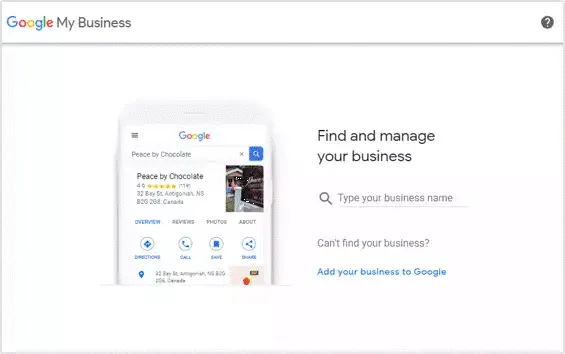
Visit Google My Business and click the button "Manage now".
Step 3:
Enter the name of your business.
Step 4:
Select the category that best fits your business.

Step 5:
Select whether you want to add a location where your customers can visit.

Step 6:
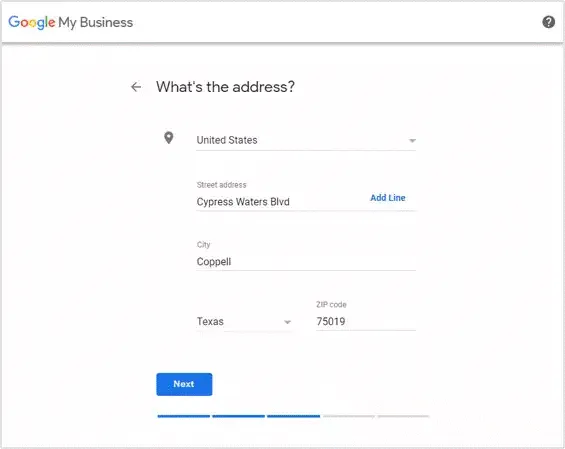
Add your address.
Step 7:
Make changes on Google maps in case the location pin is inaccurately placed.

Step 8:
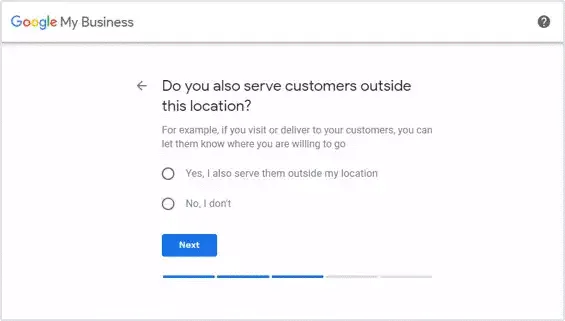
Add any additional service areas you wish to add to your profile.

Step 9:
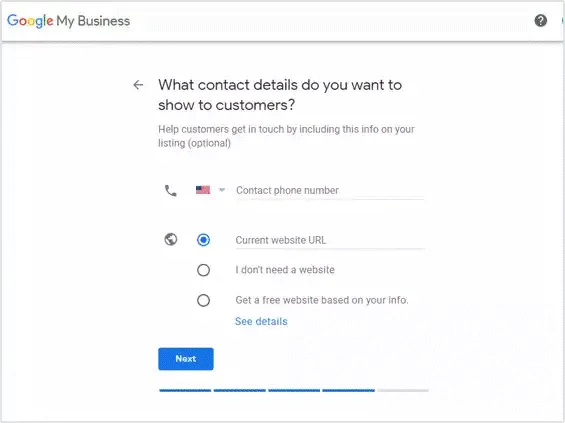
Add your business phone number and website URL.
Step 10:
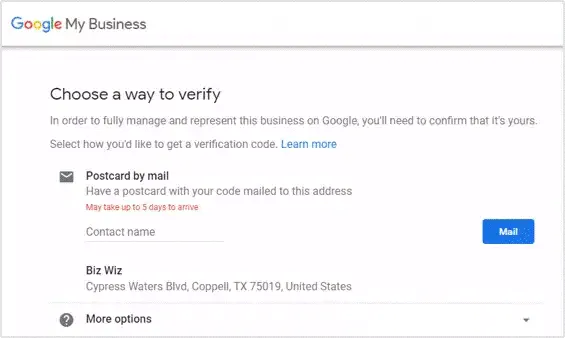
Once your Google My Business profile is setup, Google will need to verify your business. They will send you a postcard with a PIN to verify that you are actually the owner of the business. Email and phone verifications are also available for select businesses.
Step 11:
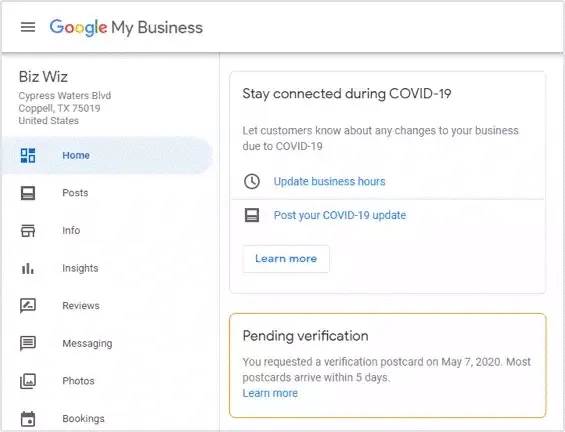
Once you have received the postcard with the PIN, you'll need to log in and add the PIN to your Google My business profile, which will complete the verification process.
Google My Business for Multi-Location Businesses
If you’re running a business with multiple locations, consider creating a location group. This will allow you to easily manage all of your different locations. Here’s how you can get started.
Step 1:
Sign in to your Google My Business account .
Step 2:
Click “Manage locations”.
Step 3:
Then, click “Create location group”.

Step 4:
Enter the name of your new location group.
Step 5:
Click "Create".
Part 2:
Optimizing your Google My Business profile
Now that you’ve created your
Google My Business profile, let’s
talk about how you can manage
it for better results.
Google My Business Description
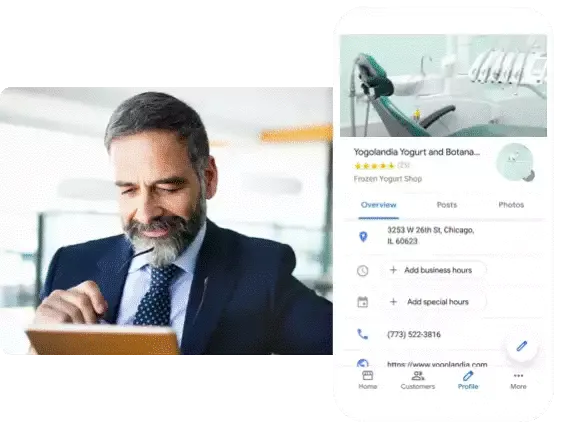
Google gives businesses the ability to add descriptions to their GMB profile. This is a 750-character summary of the services your business provides. Adding a description is a great way to help customers better understand the value that you provide.
Here’s how you can add a Google My Business description.
- Sign into Google My Business.
- Go to the "Info" tab. Scroll down to the description tab below "Highlights".
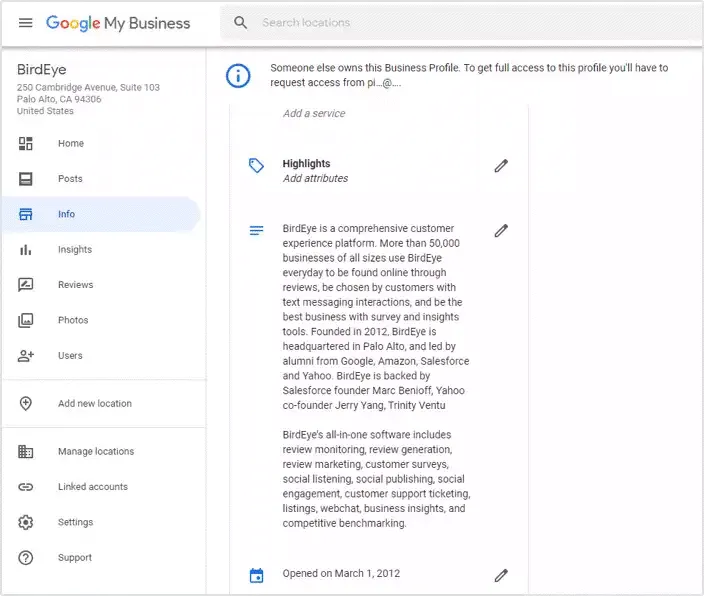
- Add your business description then click “Apply”.
Tips for writing a great description Tips For Writing A Great Description
Here are a few tips to help you write a killer GMB description.
• Be honest and upfront about the service that your business describes
• Tell potential customers how your business is different from your competitors
• Avoid misspellings and typos
• Do not focus on promotions and sales. This is better suited for Google My Business posts
Google My Business Categories
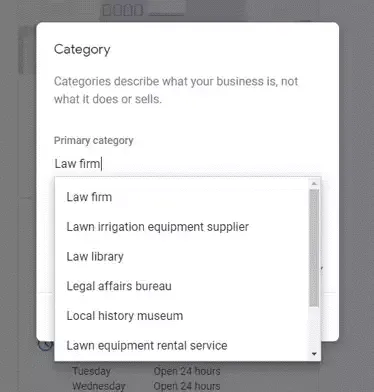
It’s also important to set Google My Business categories. These categories show Google and prospective customers what kind of business you are so you can rank higher in relevant search results. Google allows you to select up to 10 categories for your business. A realtor that also does appraisals can choose categories like "real estate agency" and "real estate appraiser".
Here’s how you can make edits to your Google My Business categories.
Step 1:
Sign in to Google My Business.
Step 2:
If you have multiple locations, go to the location whose category you want to change.
Step 3:
Go to the "Info" tab.
Step 4:
Change the category. It should show up under your business name.
Step 5:
Click the pencil to change your business categories.
Google My Business Q&A
If a customer has a question about your business, they have the option to ask a question on your Google My Business listing. These questions can be answered by a business owner or they can be answered by the public.

We recommend that business owners stay on top of these questions. Otherwise, it’s possible that they will get misleading or incorrect answers to these questions.
It’s possible that somebody might be abusing your Q&A section and using it to spread false information about your business. In this case, you do have the option to flag the question and report it to Google.
Part 3
GMB Profile Management
Your Paragraph text goes Lorem ipsum dolor sit amet, consectetur adipisicing elit. Autem dolore, alias, numquam enim ab voluptate id quam harum ducimus cupiditate similique quisquam et deserunt, recusandae. here
GMB Insights
Google My Business insights help you understand how customers are interacting with your profile. Here’s what you can see in Google My Business insights.
Search queries- See the exact search terms that customers are typing in to find your business. Consider adding commonly-used search terms to your Google My Business description to help with SEO.
Where customers view your business on Google- Google My Business shows detailed analytics about what Google services customers use to find your business, primarily your listing in Google’s search engine vs. Google Maps.
Customer actions- This section shows the most common actions that customers take on your listing like visiting your website, requesting directions or calling you.
Direction requests- Customers can request directions to your business from your Google My Business listing. Google My Business shows you what ZIP codes these requests are coming from. This allows you to target your advertising accordingly.
Phone calls- Want to know which hours your customers are calling you the most? Google My Business shows what time customers are calling the number on your Google My Business profile.
Photo insights- Not sure if anyone’s actually viewing the photos that you or your customers post on Google My Business? There is a way to check. Google shows you how many views the photos posted on your profile have.
GMB Photo Guidelines
We heavily recommend putting photos on your Google My Business profile. Remember, a picture is worth a thousand words, and a great high-definition photo showing off business services, including interior and exterior shots, can motivate customers to come to your business.
Having photos pays off. According to Google, businesses with photos get 42% more requests for driving directions and 35% more clicks to their website than businesses with no photos.
Here are Google’s requirements for a Google My Business photo.
Format: Either JPEG or PNG
Image size: Between 10KB and 5MB
Recommend profile photo size: 720 x720 pixels (minimum 250 x 250; maximum 5,300 x 5,300)
Recommended cover photo size: 1,080 x 608 pixels (minimum 480 x 270; maximum 2,120 x 1,192)
Quality: Google says that photos on your profile “should represent reality”. That means no using filters or altering images in order to present an image different than what your business actually is.
What kinds of photos can you add to your Google My Business profile?
Google My Business supports different types of photos. Let’s go through them.
- Logos: This helps customers immediately recognize your brand on Google
- Cover photos: Uploading a cover photo tells Google that this is your preferred first image that you want to show to your customers. However, setting a cover photo does not guarantee that it will be displayed in this first position
- Other photos: These photos are meant to help potential customers recognize all of your unique products, services and business locations.
Google recommends that businesses have three of each one of these different photo categories, provided that they are relevant to your services.

GMB Video Guidelines
As time goes on, more and more Internet users are turning to video. While people often don’t want to take the effort to read a lengthy article (you are the exception), they’re more than happy to watch a video. It can be a great way to show off your brand’s personality. Here are Google’s recommendations for a Google My Business video.
Length: Up to 30 seconds long
Resolution: At least 720p
Video size: 100 MB or lower
Tracking Traffic on Google My Business
Want to know how many website visitors are coming to you through Google My Business? Here’s how you can figure it out.
Consider using a UTM parameter. A UTM parameter is meant to help you understand where your website traffic is coming from if you use Google Analytics. Add the following parameters to your business link on the Google My Business dashboard: ?utm_source=google_my_business
Once you do this, you’ll be able to identify how much traffic came from Google My Business within your Google Analytics dashboard.
Google My Business Posts
Google My Business gives businesses the ability to make posts and promote products, offers, events and sales. Here are three types of Google My Business posts.
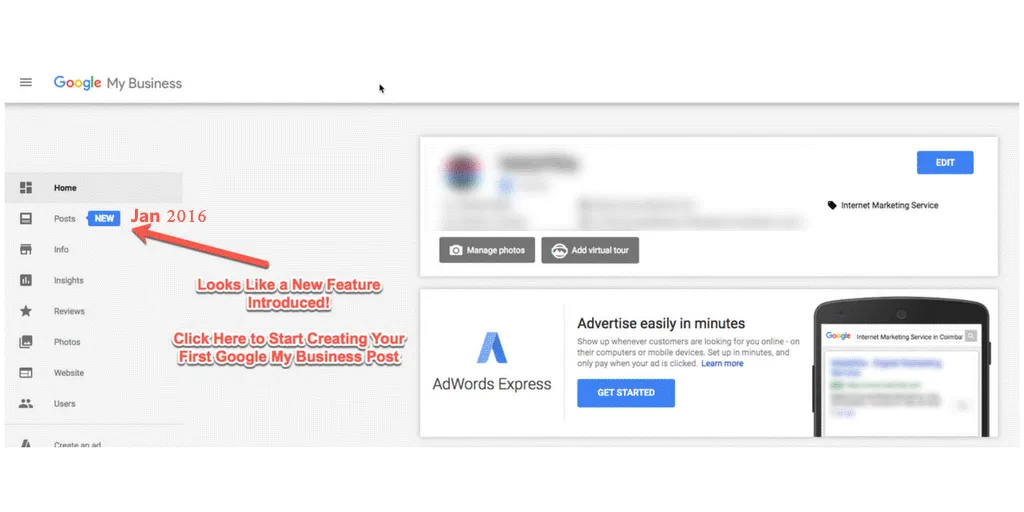
What’s New- This is a place for you to share general business updates, news about your company, content, new team additions etc..
Events- Got an event coming up? Virtual or in real life? You have the opportunity to add your event to your Google My Business profile with all the details.
Offers- Promote upcoming sales, discounts and promotions. If you wish, you can make a discount solely for Google My Business.
What’s New, Events, and Offers posts are temporary and will only be on your profile for 7 days.
Part 4
GMB Profile Management
Your Paragraph text goes Lorem ipsum dolor sit amet, consectetur adipisicing elit. Autem dolore, alias, numquam enim ab voluptate id quam harum ducimus cupiditate similique quisquam et deserunt, recusandae. here
The importance of GMB reviews
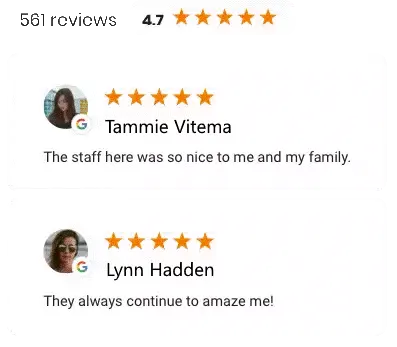
There’s one other important piece of information on your Google My Business profile: your Google reviews. These can help your business in two ways.
Google reviews help build credibility
When trying out a new business, every customer has a fear that the experience they’re going to get might not live up to their expectations. Social proof can help a worried customer get past their fears. If 500 people tell them a business is great, chances are the business is serious about providing fantastic customer experience. If 500 Google reviews give a business 5 stars, the customer will get the same impression.
Google reviews help your SEO
It’s not just customers who value reviews. Google’s algorithm also values reviews for the same reason. Hundreds of great reviews show that your business provides great services and Google aims to provide the best results for every user search. Lots of glowing reviews mean you have a better chance of ranking high for relevant search terms.
How to Generate Leads Through Google My Business
Want to allow your businesses to make reservations and bookings through your Google My Business account? Google My Business integrates with different partners that allow potential customers to book directly from your Google My Business profile. Here is a list of Google My Business booking partners.
Want to set up Google My Business bookings? Here’s how you can get started.
Step 1 :
Sign in to Google My Business. If you have a multi-location business, click on the relevant location.
Step 2:
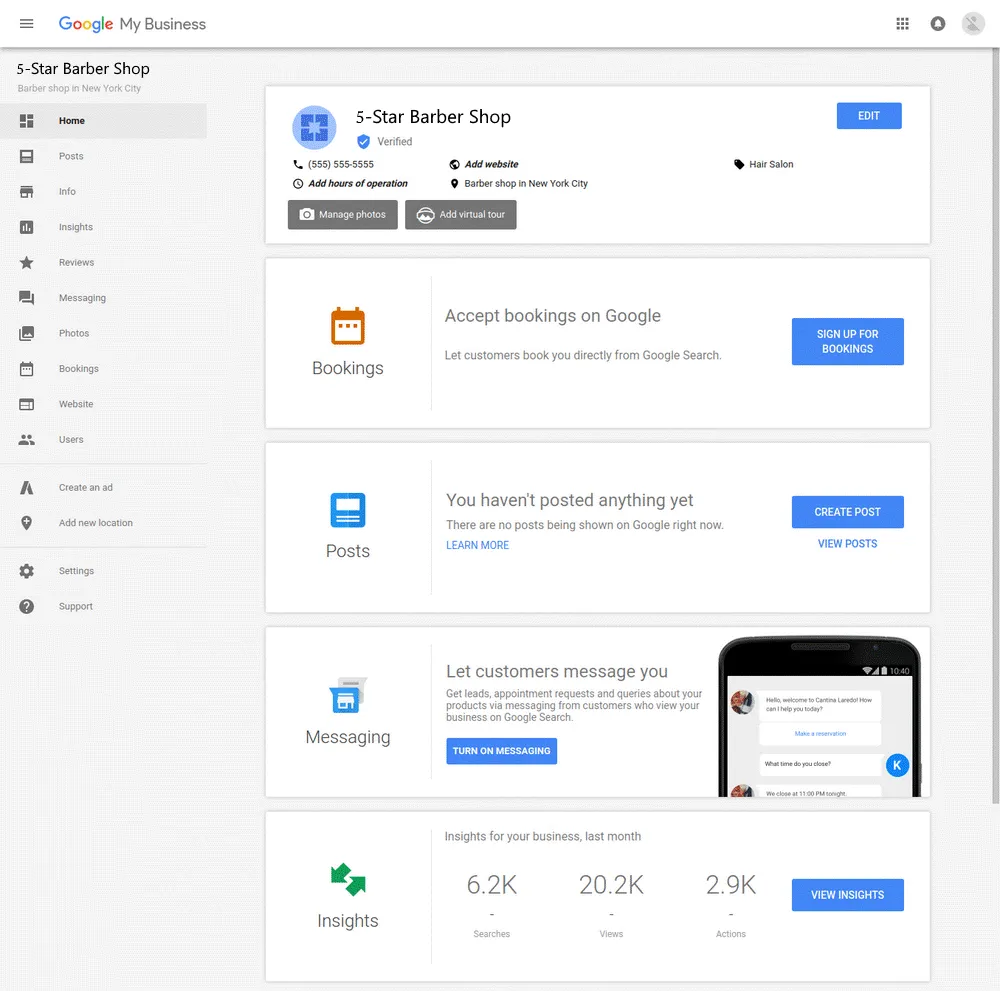
From the menu, click Bookings. If you don’t see this option, it’s possible that Bookings is not yet available in your area.
Step 3:
Sign up for the service with one of Google My Business’s booking partners.
Step 4:
It takes less than a week for the service to be set up on your Google My Business listing. Once this happens, your customers can start making appointments through the tool.
Creating a GMB Short Name & URL
Consider getting a custom Google My Business short link (vanity URL) to make it easier to share your profile. While most Google My Business URLs are long strings of numbers and letters, a short link takes this form: g.page/YourBusinessName
Once you get a custom short link, it’s easier to share your Google My Business profile with your customers both in person and on marketing materials. Here’s how you can create your own custom short link.
Step 1:
Sign in to Google My Business.
Step 2:
If you have a multi-location business, open the location you wish to create a short name for.
Step 3:
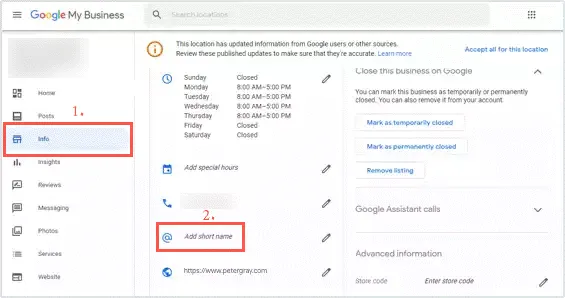
From the menu on the left, click Info > Add profile short name (the @ section). You should see this in the box under your phone number.
Step 4:
Enter your unique short name. Your short name can be anywhere between 5-32 characters.

If your name isn’t available, you’ll receive an error message and have to choose a different name. Try abbreviating your name or adding other descriptions, like your location. You can also pick another word that describes your business or brand.
Step 5:
Click Apply. Your short name will show as pending. It will show on your business profile when it’s approved.
The Google My Business App
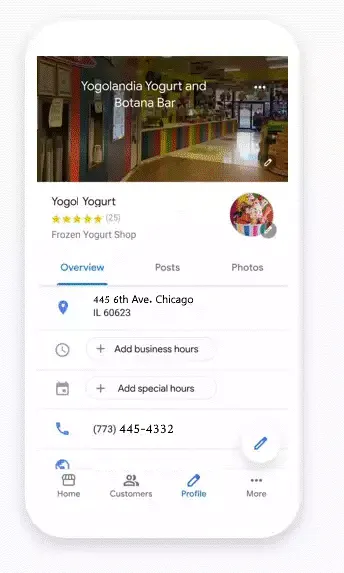
Want to manage your Google My Business listing on-the-go? The Google My Business app allows you to do that. The app is available on both the App Store and Google Play. Here are a few things that you can do within the Google My Business app.
Update business information
Respond to reviews
Visit insights
Share posts
However, there are some actions on Google My Business that can only be taken on desktop.
Deleting your Google My Business account
Changing settings
Google My Business Q&A
If a customer has a question about your business, they have the option to ask a question on your Google My Business listing. These questions can be answered by a business owner or they can be answered by the public.

Your Paragraph text goes Lorem ipsum dolor sit amet, consectetur adipisicing elit. Autem dolore, alias, numquam enim ab voluptate id quam harum ducimus cupiditate similique quisquam et deserunt, recusandae. here